How to Check Your AI Privacy Settings (All Major Platforms)
Step-by-step instructions for checking and disabling AI training on Claude, ChatGPT, Gemini, Copilot, Perplexity, and Grok. Updated June 2026.
Graydon Trusler
Lexpert FounderNovember 25, 2025
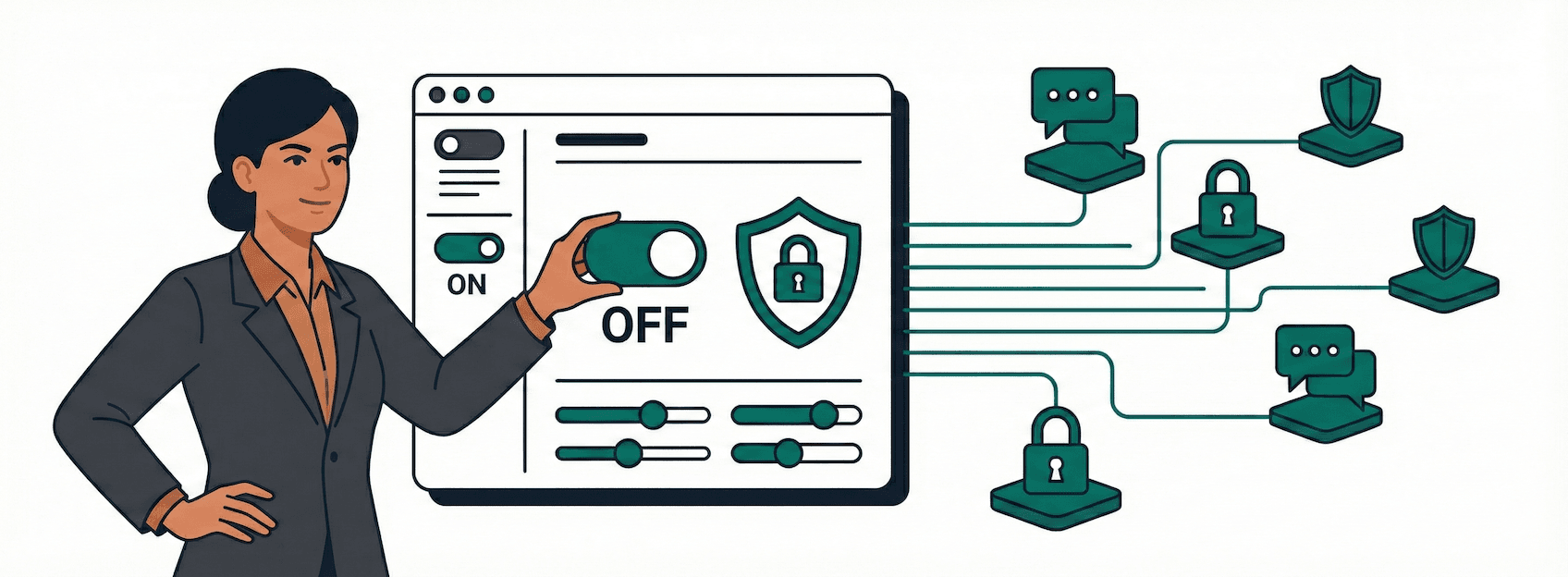
Check These Settings Now
Most AI platforms use your conversations to train their models by default. If you're using AI for client work, you need to verify these settings are configured correctly. This takes 5 minutes per platform.
This guide walks you through the exact steps to check and disable AI training on the major platforms. The instructions are current as of June 2026.
Related: Stop Worrying About AI Stealing Your Data covers when you actually need business tier plans vs. consumer plans with privacy settings configured.
Claude (Anthropic)
Important context: Anthropic changed their policy in late 2025. Consumer accounts (Free and Pro) now have training enabled by default. You must opt out manually.
How to check:
- Go to claude.ai and sign in
- Click your profile icon in the bottom-left corner
- Select Settings
- Click the Privacy tab at the top
- Scroll down to Privacy settings
- Look for "Help improve Claude"
What to look for:
- Toggle ON (blue): Your chats ARE being used for training
- Toggle OFF (gray): Your chats are NOT being used for training
To disable:
Click the toggle to turn it OFF. The setting saves automatically.
What you should know:
- The setting applies to new conversations from the moment you change it
- If you revisit old conversations after the policy change, those can be included
- Disabling this extends data retention from 5 years back to 30 days
- Enterprise and Team accounts are exempt by default
ChatGPT (OpenAI)
How to check:
- Go to chatgpt.com and sign in
- Click your profile icon to open your account menu
- Select Settings
- Click Data controls
- Look for "Improve the model for everyone"
What to look for:
- Toggle ON: Your conversations ARE being used for training
- Toggle OFF: Your conversations are NOT being used for training
To disable:
Click the toggle to turn it OFF.
What you should know:
- This applies to your entire account across all devices
- The opt-out is not retroactive for past conversations
- Important caveat: If you give thumbs-up or thumbs-down feedback on a response, that entire conversation may still be used for training, even if you've opted out
- ChatGPT Team, Enterprise, and API users are not included in training by default
- Temporary Chats are deleted within 30 days and not used for training
Google Gemini
Important context: As of September 2025, Google uses your uploads (files, photos, videos, screenshots) for training by default.
How to check:
- Go to gemini.google.com and sign in
- Open myactivity.google.com/product/gemini (or from Gemini, open the account menu and choose Gemini Apps Activity)
- Look for the "Keep Activity" toggle (your stored history is called "Gemini Apps Activity")
What to look for:
- Activity ON: Your chats and uploads ARE being used for improvement
- Activity OFF: Your data is NOT being saved or used
To disable:
- Turn off the "Keep Activity" toggle
- Confirm when prompted
What you should know:
- Turning this off means you lose conversation history (you can't refer back to previous chats)
- Responses may become more generic without personalization
- Chats already reviewed are kept separately for up to 3 years, even if you delete your activity
- Google Workspace accounts managed by organizations are exempt by default
- This is separate from Gmail's "smart features" which scan emails for spam filtering and suggestions (that's not AI model training)
Microsoft Copilot
Microsoft Copilot has different privacy controls depending on which version you're using.
For Personal Accounts (Copilot Web/Desktop):
How to check:
- Go to copilot.microsoft.com and sign in
- Click your Profile icon in the top-right corner
- Select Privacy settings or click your account name
- Look for "Training on conversation activity"
To disable:
Toggle "Training on conversation activity" to OFF. (There is a separate "Training on voice conversations" toggle.)
What you should know:
- You can also disable Personalization which uses your chats and Bing activity
- Opting out of training doesn't exclude your data from being used for "general product improvements" or advertising purposes per Microsoft's privacy statement
- You can opt out of training and still keep personalization on
For Microsoft 365 Copilot (Work/School):
Your data is NOT used for training foundation models by default. Prompts, responses, and file contents aren't used to train the underlying AI.
Microsoft may use optional feedback to improve Copilot, but not to train the foundation models.
Perplexity
How to check:
- Go to perplexity.ai and sign in
- Click your account name or profile icon, then All settings
- Open Preferences in the left menu
- Scroll to the Artificial Intelligence section and find "AI data retention"
What to look for:
- Toggle ON (blue): Your searches ARE being used for training
- Toggle OFF: Your searches are NOT being used for training
To disable:
Toggle "AI Data Retention" to OFF.
What you should know:
- AI Data Retention is ON by default for all plans except Enterprise
- Opting out only applies going forward, not retroactively
- Perplexity does not delete training data collected before you opted out
- If you use Perplexity without logging in, your data is collected by default
- You can use Incognito mode for searches that are never stored
- You can also clear or disable Memory in Settings > Personalize > Memory
- Enterprise accounts are never included in training
Grok (xAI / X)
Important context: X (formerly Twitter) enables data sharing with Grok by default, including your posts and interactions on the platform.
How to check (Web):
- Go to x.com and sign in
- Click More in the left sidebar
- Select Settings and privacy
- Click Privacy and safety
- Select "Grok & Third-party Collaborators"
- Look for the training toggle
How to check (Mobile App):
- Tap your profile icon
- Tap Settings & Support > Settings and privacy
- Tap Privacy and Safety
- Tap "Grok & Third-party Collaborators"
- Look for the training toggle
What to look for:
The setting says: "Allow your public data as well as your interactions, inputs, and results with Grok to be used for training and fine-tuning"
To disable:
Turn OFF the toggle. You can also click "Delete conversation history" to remove past Grok conversations.
What you should know:
- Your public X posts and interactions are used for training by default
- Making your account private prevents your posts from being used
- Private Chat mode (where available) is not used for training
- If you give thumbs up/down feedback, that conversation may still be used for training even if you opted out
- Opting out doesn't delete your data from X, it just stops AI training use
Quick Reference
| Platform | Default Setting | Where to Find It | Business Tier Exempt? | |----------|----------------|------------------|----------------------| | Claude | Training ON | Settings > Privacy > Help improve Claude | Yes | | ChatGPT | Training ON | Settings > Data controls > Improve model | Yes | | Gemini | Activity ON | myactivity.google.com > Keep Activity | Yes (Workspace) | | Copilot | Training ON | Profile > Privacy > Training on conversation activity | Yes (M365) | | Perplexity | Retention ON | Settings > Preferences > AI data retention | Yes (Enterprise) | | Grok | Training ON | Settings > Privacy > Grok & Third-party Collaborators | Private Chat only |
The Pattern
Every major platform follows the same pattern:
- Consumer accounts have training enabled by default
- You must manually opt out
- Business/Enterprise tiers are exempt by default
- Opting out is not retroactive
- Giving feedback (thumbs up/down) often overrides your opt-out
If you're using AI for client work on a consumer plan, check these settings today. It takes 5 minutes and it matters.
Last verified: June 2026. These interfaces change frequently. If something doesn't match, look for "Privacy," "Data," or "Training" in your settings.
Built by lawyers, for lawyers.
LexpertAI delivers practical AI strategies that practicing attorneys can implement today. No theory, no fluff, just results.
Read our storyWant more practical AI guidance?
Get actionable tips and strategies delivered weekly. No theory, just real-world implementation.
Read The Playbook